Summarize this article with AI
In Brief
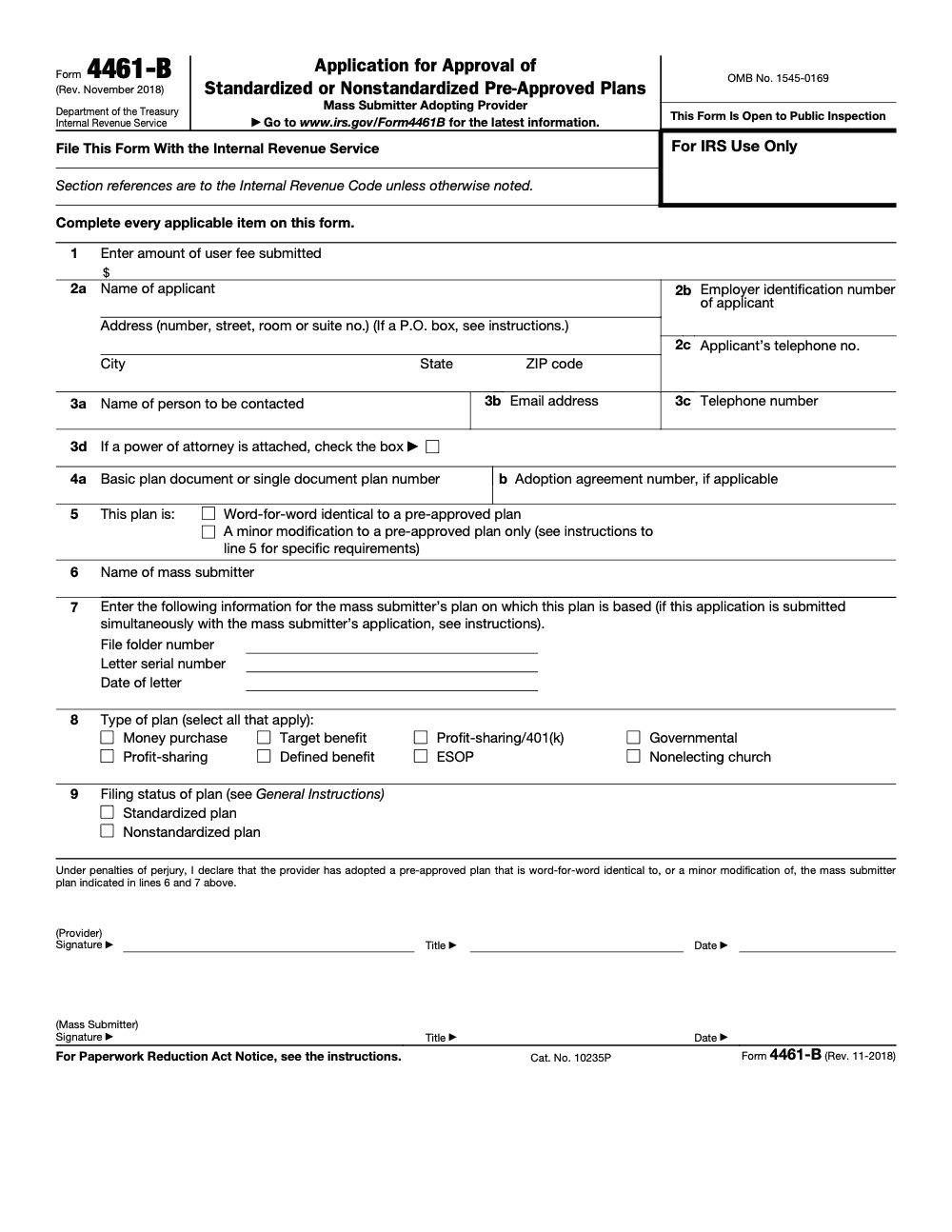
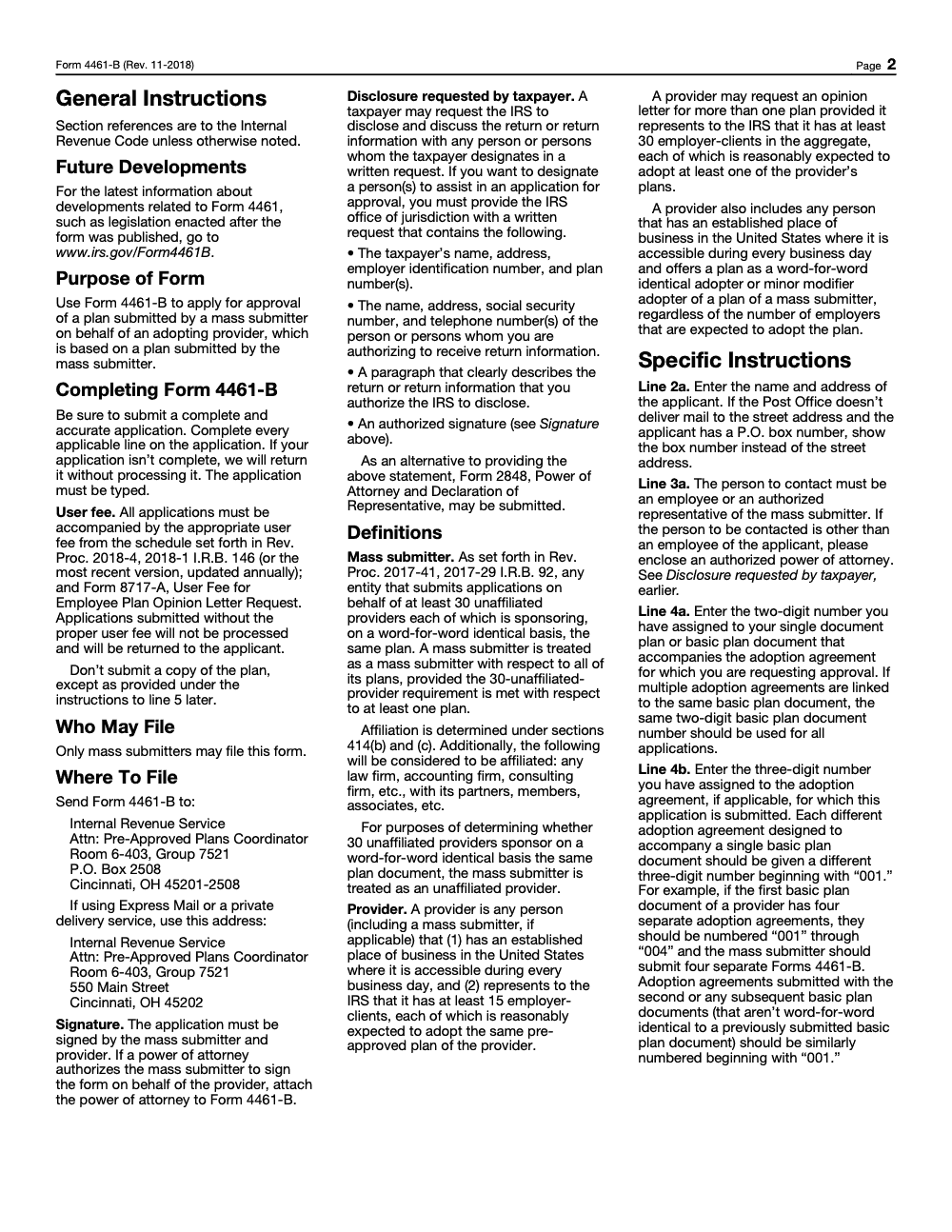
Form 4461-B is the IRS application a mass submitter files to seek opinion-letter approval of a pre-approved retirement plan on behalf of an adopting provider (per Rev. Proc. 2017-41). The mass submitter must sponsor the same plan on a word-for-word identical basis for at least 30 unaffiliated providers, and every filing carries the current-year user fee on Form 8717-A. Both the mass submitter and the adopting provider must sign unless an attached Form 2848 authorizes the mass submitter to sign on the provider's behalf (according to IRS Form 4461-B instructions, Rev. November 2018). If your firm is buried in opinion-letter cycle work, our tax delivery team can run the SOP and signer routing.
The Form 4461-B filings that get returned are almost never about plan design. They come back over a missing signature, one form trying to cover several adoption agreements, or a fee paired with the wrong transmittal. The IRS does not call to fix it; it returns the application and the cycle restarts. Form 4461-B is what a mass submitter files to seek opinion-letter approval of a pre-approved retirement plan on behalf of an adopting provider.
The threshold and the channel are both firm. The mass submitter must sponsor the same plan on a word-for-word identical basis for at least 30 unaffiliated providers, and since August 1, 2024 the form must be filed on Pay.gov, no paper, as one PDF of 15 MB or smaller. Both the mass submitter and the adopting provider sign unless an attached Form 2848 authorizes otherwise. The checklists below work as copy-paste SOPs.
Key Takeaways
- Form 4461-B must be filed on Pay.gov. Starting August 1, 2024, the IRS requires electronic submission of 4461-B through Pay.gov, no paper.
- Create and verify your Pay.gov account, sign in with MFA, search “4461-B,” and use the live filing flow.
- Upload one legible PDF, 15 MB or smaller, that includes your cover letter, 2848 or 8821 if used, and any interim amendment certification. Fax overflow to 844-255-4818 and include the Pay.gov tracking ID, EIN, and applicant name. Keep each fax under 150 MB.
- Pay inside Pay.gov by ACH, debit, or credit card, then save the confirmation email and PDF receipt as your proof of filing.
- Do not contact the IRS about status until 60 days after the end of the submission period, or your filing date, whichever is later.
Start Here, File Form 4461-B on Pay.gov
Sign in to Pay.gov, search “4461-B,” select the live form, and follow the on‑screen steps to completion. You will stay in the Pay.gov workflow for the entire filing, from form data to payment.
Quick start, sign in to Pay.gov, search “4461-B,” open the live application, complete the form, upload your single PDF, and pay.
Form 4461-B is electronic only, which means no paper package. Prepare the online form, then upload a single PDF that bundles your cover letter, any Form 2848 or 8821, and, if needed, the Certification Regarding Interim Good Faith Amendments. If your PDF is larger than 15 MB, remove nonessential items or fax the extra pages to 844‑255‑4818 with your Pay.gov tracking ID, EIN, and applicant name on the cover. Keep each fax under 150 MB.
When you submit, Pay.gov sends a confirmation email. Treat it as your acknowledgement notice and keep it with your workpapers. Complete payment by ACH, debit, or credit card inside Pay.gov so the filing is recorded as paid and complete.
Deadlines and the Electronic‑Only Rule
The IRS opened electronic submission on July 1, 2024, then made it mandatory beginning August 1, 2024. From that date forward, Form 4461‑B must be submitted through Pay.gov. Paper submissions after that date will not be processed.
After you file, wait on status. The IRS asks you not to contact them until 60 days after the submission period ends or the date you filed, whichever is later. Save your confirmation email and receipt so you can match any later faxes or follow ups to the correct case.
Note, if you are filing for a mass submitter and an adopting provider before a file folder number exists, enter the basic plan document number and adoption agreement number, or the single document plan number, in the file folder field as directed by the instructions.
Who This Guide Helps
You will find this useful if you are a mass submitter, a provider working under a mass submitter, a TPA or ERISA counsel coordinating submissions, or a CPA firm supporting plan document providers. The steps below follow the IRS pages as of January 31, 2026, and link to the Pay.gov 4461‑B form page and the current IRS instructions. Always check the IRS page for updates before you file.
Create Your Pay.gov Account and Sign In
Set up your account first so you can submit without delays. Go to Pay.gov, select Sign In, create your account, verify your email, then enable multi‑factor authentication. You can preview the form as a guest, however you cannot submit until you are signed in. With an account, you can also view past payments, reuse a prior form, and store payment methods.
Account Setup At A Glance
| Step | Purpose | Compliance tip |
| Register | Establish credentials | Use a unique, complex password, avoid reuse |
| Verify email | Activate access | Click the link right away so you do not lose time |
| Sign in | Access the live form | Keep profile details consistent with your filing |
| MFA | Add protection | Prefer an authenticator app for stronger security |
These small steps reduce lockouts on filing day and protect stored payment data.
Find Form 4461-B on Pay.gov
After sign‑in, type “4461‑B” in the Pay.gov search box and select Form 4461‑B, not the instructions‑only listing. You should see the standard steps, Before You Begin, Complete Agency Form, Enter Payment Info, Review and Submit, Confirmation.
What To Verify Before You Start
| Step | What to check |
| Search | “Form 4461‑B” appears with IRS as the agency |
| Select | Live Pay.gov workflow is available, not a static PDF |
| Proceed | Single PDF upload rule and 15 MB limit are noted on the page |
The Pay.gov 4461‑B page repeats the key rules, single PDF capped at 15 MB, fax overflow to 844‑255‑4818, place the tracking ID, EIN, and applicant name on the fax cover, and keep each fax under 150 MB.
Start the Online Submission
Begin the application, complete required fields, and use the View PDF button to validate entries before you continue. When prompted, upload your single bundled PDF, then continue to payment. If your file is over 15 MB, trim it or fax the extra material to 844‑255‑4818, and include the Pay.gov tracking ID, EIN, and applicant name on the cover sheet. For peace of mind, the IRS allows you to fax EP Customer Service at 855‑224‑1311 to confirm your fax was delivered.
Accepted payment methods are ACH, debit, or credit. After you submit and pay, you will receive a confirmation email, which serves as your acknowledgement. Save it with the PDF receipt.
Complete Applicant, Contact, and Signature Sections
Match your entries to the applicant’s tax records and your attachments. Enter the legal name, street address, city, state, ZIP, and the nine‑digit EIN exactly as on file. Provide a contact name, email, and phone for IRS inquiries. The contact must be an employee or an authorized representative of the mass submitter, if the contact is not an employee of the applicant, enclose an authorized power of attorney. If a power of attorney will act, check the box and include Form 2848 in the single PDF. Use the penalties‑of‑perjury declaration and include the signer’s name, title, signature, and date. Consistency across the Pay.gov entry, cover letter, and any 2848 or 8821 reduces follow up.
Pro tip, if a representative is signing, make sure the 2848 authorization covers this filing, includes the correct EIN and plan information, and that the signer’s title aligns with the authorization on file. Keep the Pay.gov tracking ID handy so any faxed items are linked to the right case.
Enter Your Plan Identifiers Correctly
Get the identifiers right the first time, it prevents delays. Use the mass submitter’s unique two‑digit basic plan document number and the matching three‑digit adoption agreement number. If an IRS file folder number already exists, enter it in the XX‑XXX format. If you are filing before the IRS assigns a file folder number, enter the basic plan document number and adoption agreement number, or the single document plan number, in the file folder field as directed by the instructions. Include the letter serial number and date only if the IRS previously issued an opinion letter for the mass submitter’s plan.
Choose Standardized Or Nonstandardized Status
Form 4461‑B asks you to select standardized or nonstandardized. Your choice must align with Revenue Procedure 2023‑37. A standardized qualified pre‑approved plan must meet the additional requirements in section 9.03. An ESOP or a statutory hybrid plan, which includes typical cash balance designs, cannot be standardized. If your document cannot meet standardized conditions, select nonstandardized and make sure your submission matches that status.
Simple check, if your plan includes ESOP features or a cash balance formula, it is not standardized under the pre‑approved program’s rules.
Pick Plan Types And Follow Combination Rules
While completing the application, pick every applicable plan type so the opinion letter request reflects the design you submitted. If you combine designs in one document, follow the combination rules and prohibitions in section 14 of Revenue Procedure 2023‑37 and verify that any combination you propose is permissible. Use plan type codes to match the governing document and to show whether an adopter is word‑for‑word identical or a minor modifier under a mass submitter.
Use The Right Plan And Adoption Agreement Numbers
Use precise combinations so the IRS can link the adopting provider to the correct basic plan document. For example, a basic plan document 09 paired with adoption agreement 009 is shown together as 09‑009. File a separate Form 4461-B for each adoption agreement, even when several adoption agreements share the same basic plan document. For a single document plan, the placeholder format looks like 09‑000. If you are filing simultaneously with the mass submitter and no file folder number exists yet, follow the instruction to report the basic plan document and adoption agreement numbers in place of the file folder field. Validate every entry against the mass submitter’s records before you upload.
Submission Window Context You Should Know
Cycle 4 submission for defined contribution pre‑approved plans ran February 1, 2024 through January 31, 2025, with Pay.gov required for 4461 and 4461‑B during that window. The IRS guidance allows filings after the submission period, and it sets the expectation that virtually all opinion letters for a cycle are issued together. Keep your internal timelines tight so your document is review‑ready when the window applies to your plan type.
Prepare And Upload Your Single PDF, 15 MB Max
Bundle the required items into one clean PDF under 15 MB, cover letter, Form 2848 or 8821 if used, and the Certification Regarding Interim Good Faith Amendments when applicable. Name the file clearly, confirm it opens, is legible, and includes signatures. Upload this single file in the Pay.gov step, then continue to payment. If you cannot get under 15 MB, trim nonessential pages or fax the overflow to 844‑255‑4818. Put the Pay.gov tracking ID, EIN, and applicant name on the cover sheet, and keep each fax under 150 MB. If you want confirmation that your fax was delivered, the IRS allows you to fax EP Customer Service at 855‑224‑1311.
- Optimize scans, reduce image resolution, and flatten the PDF before upload.
- Keep a small index page in the PDF so reviewers see your structure at a glance.
- Save your Pay.gov confirmation email and the PDF receipt, these are your proof of timely filing.
Include 2848, 8821, And Interim Amendment Certifications
Decide whether you need Form 2848, Form 8821, and a Certification Regarding Interim Good Faith Amendments. 2848 authorizes representation, 8821 authorizes information sharing, and the interim certification confirms plan updates tied to the listed changes in law. Keep the single PDF under 15 MB, or fax overflow with the tracking ID if needed.
| Document | Core purpose | Key inclusions |
| Form 4461‑B | Request an opinion letter | Plan identifiers, status, penalties‑of‑perjury declaration |
| Form 2848 | Representation authority | Representative details and powers granted |
| Form 8821 | Information authorization | Designees and tax matters covered |
| Interim certification | Good‑faith amendments | Tie to the applicable cumulative list and dates |
Formatting And Submission Steps
- Register or sign in to Pay.gov, search “4461‑B,” open the live form, complete the fields, and validate entries with the View PDF button.
- Upload your single PDF, 15 MB or smaller. If your compiled file cannot be reduced, remove nonessential pages or fax only the supplemental pieces with the tracking ID, EIN, and applicant name on the cover.
- Submit payment inside Pay.gov by ACH, debit, or credit card. Save the confirmation email and the PDF receipt.
Pay The Fee On Pay.gov And Get Confirmation
Your filing is not complete without a successful payment. Use ACH, debit, or credit card, and verify the fee amount tied to the current user fee schedule referenced in the instructions. Per the IRS Form 4461-B instructions, Form 8717-A is the required user-fee transmittal that must accompany your filing. After payment, you will receive a confirmation email. Save it and the PDF receipt in your workpapers.
Track Your Submission, Fax Extras When Needed
Use the Pay.gov confirmation email as your acknowledgement. If you created an account, you can view prior payments and copy a previous filing to save setup time. If you faxed overflow materials, keep your fax confirmations and timestamps, and include the Pay.gov tracking ID, EIN, and applicant name on the cover sheet so IRS staff can match items to your case. Wait the full 60 days after the submission period ends, or your filing date, before contacting the IRS about status.
- Store the confirmation email and tracking ID.
- Keep a short log that lists every fax you sent and the pages included.
- Reconcile the Pay.gov upload and any faxes in your compliance file.
Common 4461‑B Errors And How To Avoid Them
Most delays come from avoidable formatting or data issues. Use this quick list before you hit Submit.
- Using the wrong channel, Pay.gov is required, paper is not processed.
- Oversized upload, keep the single PDF at or below 15 MB, fax only the overflow with tracking ID, EIN, and applicant name.
- Identifier errors, verify the two‑digit basic plan document number and the three‑digit adoption agreement number, or the single document plan number. Use the instructions to handle the file folder field when no number exists yet.
- Status mismatch, a plan with ESOP features or a cash balance formula is not standardized.
- Missing or mismatched signature details, make sure the signer is authorized and dates are complete.
| Common error | How to avoid |
| PDF over 15 MB | Optimize, then fax overflow with required identifiers |
| Wrong plan numbers | Cross‑check against mass submitter records |
| Status or plan type mismatch | Confirm against Rev. Proc. 2023‑37 sections 9 and 14 |
| Missing POA match | Align signer details with Form 2848 or 8821 |
Where Accountably Fits, If Your Team Is Underwater
When deadlines stack up, the bottleneck is usually packaging, review, and document control, not know‑how. If you need a disciplined way to assemble single‑PDF filings, standardize workpapers, and keep reviewers out of the weeds, Accountably can integrate trained offshore teams into your workflow. We work in your systems, follow SOPs, and keep turnaround predictable so your in‑house experts can focus on plan design and client guidance. Use us for stable production capacity, or set up a build‑operate‑transfer unit if you want long‑term control. This is offshore staffing with structure, trained preparers placed inside your firm and backed by multi-layer review, not resume farming. Proof before your name is on the line.
Conclusion
You win 4461‑B by being boring in the best way. Sign in, find the live form, upload one tidy PDF, and pay. Confirm your identifiers, pick the correct status, and keep the Pay.gov tracking ID in every fax and note. Do the small things right, and you will spend less time chasing fixes and more time moving plans forward.
Common Mistakes We See Every Season
The errors I see on Form 4461-B are repeat offenders. The instructions are explicit, but the rules are easy to miss when filings stack up inside a submission window. These are the patterns that come back to bite mass submitters and providers most often.
Reusable Checklists
These checklists are copy-paste ready. Drop them straight into your firm SOP, or print them and run through each one before you hit Submit on Pay.gov.
Single-PDF assembly check (before Pay.gov upload)
- Cover letter typed and dated, with the applicant's legal name and EIN matching the form entries.
- Form 4461-B itself fully typed, with both signatures (or Form 2848 attached for representative signing) made under penalties of perjury.
- Form 2848 or Form 8821 included inside the PDF if a representative or designee is authorized.
- Certification Regarding Interim Good Faith Amendments included when applicable to the cumulative list cycle.
- Final compiled PDF under 15 MB; nonessential pages trimmed or routed to fax overflow at 844-255-4818 with Pay.gov tracking ID, EIN, and applicant name on the cover sheet.
- Document opens cleanly, pages legible, signatures visible on screen, file name free of special characters.
- Pay.gov confirmation email and PDF receipt saved to the workpapers immediately after submission.
Plan identifier verification (lines 4a, 4b, 6, 7, 8, 9)
- Line 4a basic plan document number is the same two-digit number used on every Form 4461-B that ties to this plan.
- Line 4b adoption agreement number is three digits, starting at 001 for the first agreement under a new basic plan document.
- Line 6 mass submitter name matches the mass submitter's own Form 4461 filing or the prior opinion-letter records.
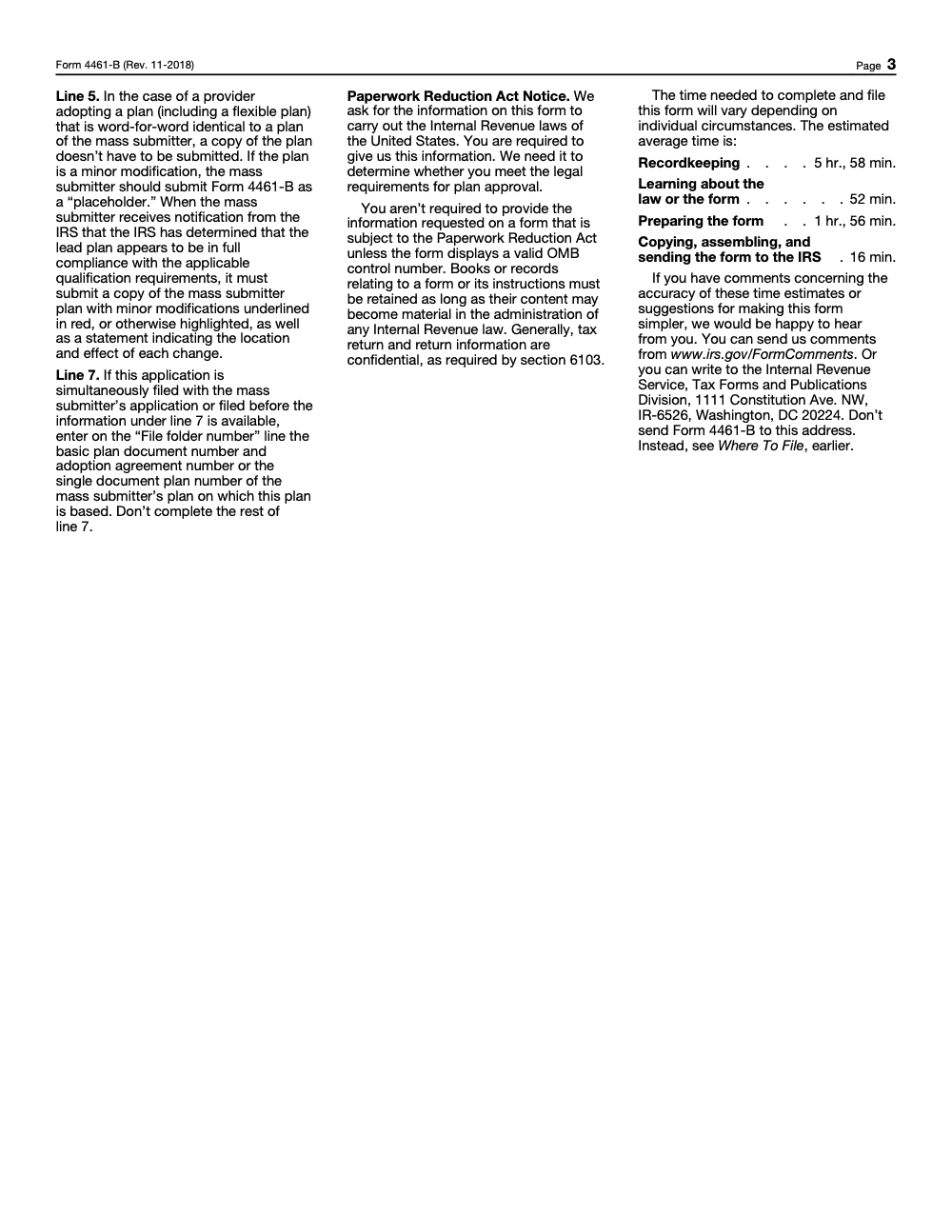
- Line 7 file folder number, letter serial number, and date are completed only if the IRS has already issued an opinion letter for the mass submitter's plan; if filing simultaneously with the mass submitter, fill only the file folder field per the instructions and leave the rest of line 7 blank.
- Separate Form 4461-B prepared for each adoption agreement linked to this basic plan document.
- Line 8 plan-type checkboxes match the governing document; line 9 status (standardized or nonstandardized) selected with ESOP or statutory hybrid designs flagged as nonstandardized.
- Cross-check completed against the mass submitter's master records before upload.
Mass-submitter eligibility audit (30-unaffiliated-providers count)
- Provider list compiled, with the mass submitter itself counted as one of the unaffiliated providers.
- Affiliation pre-check run under Internal Revenue Code §§414(b) and (c); each law, accounting, or consulting firm collapsed with its partners, members, and associates into a single entry.
- At least 30 unaffiliated providers (mass submitter included) sponsor the same plan on a word-for-word identical basis.
- Once the 30-provider threshold is met on any one plan, mass-submitter status applied to all of the submitter's plans, including ones with fewer adopters, per Rev. Proc. 2017-41.
- Each provider on the list has an established U.S. place of business accessible every business day, and either represents at least 15 employer-clients for a single-plan provider, 30 in the aggregate for a multi-plan provider, or is a word-for-word identical or minor modifier adopter of the mass submitter's plan.
- Disclosure authorization in place, either as the four-element written statement (taxpayer name, address, EIN, plan numbers; representative name, address, SSN, phone; scope paragraph; signature) or via Form 2848.
- Books and records retained as long as their content may be material to administering Internal Revenue law, per the Form 4461-B recordkeeping requirement.
Keep 4461-B Season From Stalling
Pre-approved retirement plan filings live or die on documentation discipline. Every Form 4461-B has to land with the right user fee under the year's first I.R.B. revenue procedure (Form 8717-A attached, not the broader Form 8717), and the mass submitter must demonstrate sponsorship of the same plan on a word-for-word identical basis for at least 30 unaffiliated providers (according to IRS Form 4461-B instructions, Rev. November 2018, and Rev. Proc. 2017-41). Miss any one of those and the IRS returns the application without processing.
The breakdowns I see are not about tax knowledge. They are workflow gaps: counting affiliated firms as separate providers, restarting adoption agreement numbering at the wrong point, or filing a single Form 4461-B that tries to cover several adoption agreements at once. All fixable if the SOP gets specific.
- Pre-check affiliation under IRC §§414(b) and (c) before counting toward the 30-unaffiliated-provider threshold, and remember the mass submitter itself counts in the 30.
- Reuse the same two-digit basic plan document number on line 4a across every Form 4461-B that ties to that plan, and restart adoption agreement numbering at 001 each time a new, non-identical basic plan document is filed.
- File one Form 4461-B per adoption agreement, not one form covering several. The basic plan document number repeats; the form does not.
- If the filing is simultaneous with the mass submitter's lead Form 4461, fill only the file folder number on line 7 and leave the rest of line 7 blank per the instructions.
- Confirm the user fee against the current year's first-issue I.R.B. revenue procedure rather than the 2018-4 amount printed in the instructions, and pair it with Form 8717-A.
Where firms come to us, it is not for the law. It is for the production layer. Our U.S.-led tax delivery teams run the SOP, multi-signer routing, and document hand-off so the partner only sees a clean file ready for sign-off.
FAQs
Yes. When you are signed in, Pay.gov lets you save progress and return. Note your session timeout so you do not lose work, and validate entries before you exit.
Submit a corrected filing. Prepare a clean application that fixes the errors, include a cover letter referencing the original Pay.gov tracking ID, and resubmit through Pay.gov. Keep both acknowledgements with your records. The IRS does not issue a separate paper confirmation for Pay.gov cases, the email is your acknowledgement.
The confirmation email goes to the address entered during submission. Use a monitored mailbox and store the receipt and tracking ID in your workpapers.
There is no mandated file‑naming convention on the 4461‑B Pay.gov page. Use PDF only, avoid special characters in names, and keep version control in your internal checklist.
If Pay.gov is unavailable, document the time and error, wait for service restoration, then submit. Since 4461‑B must be filed electronically, you will not be able to complete the filing until Pay.gov is back online. Keep screenshots with your compliance notes.
Other forms this guide names
- Form 2848: Guide to Line 3, Filing, and Rules
- Form 8821: Tax Information Authorization
- Form 8717‑A: IRS Guide to Additional Opinion Letter Fees
- Form 4461: IRS Opinion Letter: Pay.gov Filing Guide & Fees
Summarize this article with AI
About this guide
Accountably helps US CPA, EA, and accounting firms hire trained accountants and tax preparers in India.
About us Reviewed byJugal Thacker, CPAFounder and CEO at Accountably
A US-licensed CPA with 7+ years inside US firms – PwC, a real-estate tax practice, then a full-service firm, rising from reviewer to manager to advisory. This article was reviewed against current IRS guidance for the 2025 tax year and updated for filers preparing late returns, amendments, and 2026 estimates.
View profile →How we research, review, and update this guide
Every Accountably guide is researched against primary IRS sources, reviewed by a U.S. CPA, and refreshed as guidance evolves. Read our Editorial Guidelines to see how we source, fact-check, and update our content.